OneDrive symbols show what is happening to your files, folders, account, and cloud connection. A blue cloud usually means a file is stored online, green check marks show offline availability, circular arrows indicate syncing, and a red X warns that something could not sync.
You may see these icons in Windows File Explorer, the taskbar notification area, macOS Finder, the Mac menu bar, or OneDrive.com. Although some symbols look similar, small differences can change their meaning. Understanding them helps you avoid deleting cloud files accidentally, wasting device storage, or overlooking a sync problem.
Quick Meaning
OneDrive symbols are visual status indicators that show whether a file is online-only, downloaded, permanently available offline, syncing, shared, blocked, paused, or experiencing an error. They also communicate account conditions, such as being signed out, needing attention, reaching a storage limit, or having synchronization restricted by an administrator.
OneDrive Symbols Overview Table
| Symbol or Icon | Primary Meaning | Where It Appears | Internet Required? | Uses Device Storage? |
| Blue outlined cloud | Online-only file or folder | File Explorer, Finder | Yes, to open | No significant local storage |
| Green outlined circle with check | Locally available | File Explorer, Finder | No | Yes |
| Solid green circle with white check | Always available offline | File Explorer, Finder | No | Yes |
| Circular blue arrows | Syncing or processing changes | Files, folders, taskbar, menu bar | Usually | Varies |
| Red circle with white X | Sync error | Files, folders, OneDrive icon | Not applicable | Varies |
| Pause bars | Syncing is paused | Taskbar or menu bar | No active sync | Existing files remain |
| Gray cloud with line through it | Signed out or setup incomplete | Taskbar or menu bar | Not connected | Varies |
| Yellow warning triangle | Account needs attention | OneDrive cloud icon | Varies | Varies |
| Brown exclamation symbol | Account needs attention | OneDrive cloud icon | Varies | Varies |
| Red no-entry symbol | Account blocked or frozen | OneDrive cloud icon | Access may be limited | Varies |
| People icon | File or folder is shared | File Explorer, Finder, web | Depends on file status | Depends on file status |
| Chain-link folder | Shortcut to a shared folder | File Explorer, Finder | Depends on file status | Depends on settings |
| Gray circle with horizontal bar | File type blocked from syncing | File Explorer | Not relevant | File may remain local |
| Blue information circle | New OneDrive message or feature notice | Taskbar or menu bar | Usually | No |
| Three blue lines | New file or folder | OneDrive.com | Usually | Not applicable |
| Blue diamond | Microsoft 365 subscription and storage information | OneDrive.com toolbar | Yes | Not applicable |
| Lock | Read-only or restricted file | Synced SharePoint or Teams library | Varies | Varies |
OneDrive icons are technical interface graphics rather than Unicode characters. They do not have official emoji equivalents because their exact shapes, colors, and overlays are part of Microsoft’s software interface.
What Do OneDrive Symbols Mean?
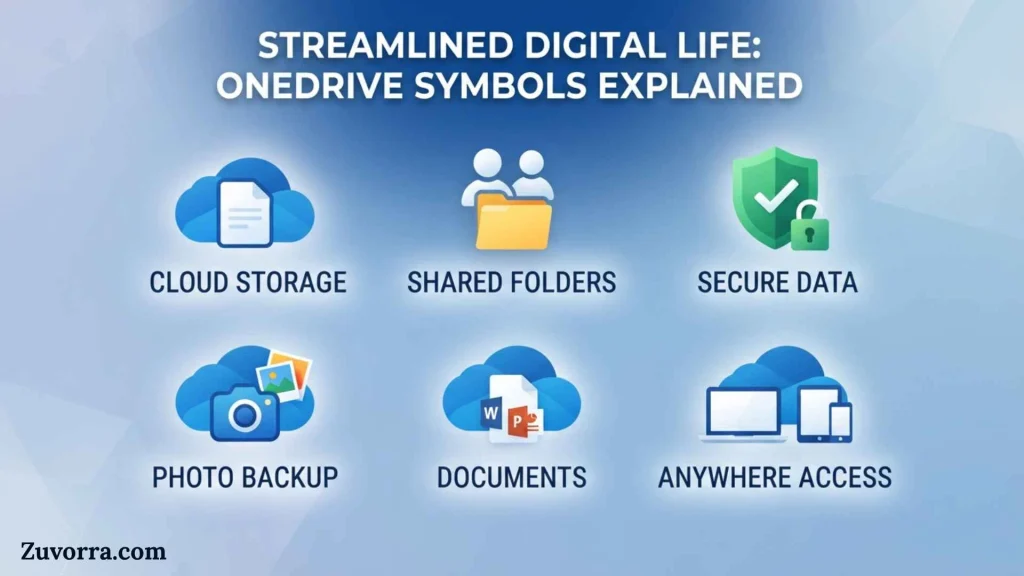
OneDrive symbols answer three practical questions:
- Where is the file stored?
- Can you use it without internet access?
- Has it synced successfully?
The most important group consists of the blue cloud and two green check-mark icons. These belong to Files On-Demand, a OneDrive feature that lets you see cloud files in File Explorer or Finder without downloading every file to your device.
The other icons report activity or problems. Circular arrows mean OneDrive is transferring or checking data. A red X indicates that a file or folder cannot sync. Pause bars mean synchronization has been deliberately stopped. Warning symbols tell you to open the OneDrive activity center for more details.
Microsoft uses these visual signals because a cloud file can exist in several states at once. It may appear in a folder on your computer while its contents remain online. Another file may have a local copy but still be backed up in the cloud. The symbols let you tell those states apart without opening each file.
History and Origin of OneDrive Icons
OneDrive symbols developed from the broader idea of file synchronization indicators. Early file-storage systems mainly showed whether data existed on a local disk. Cloud storage introduced a more complex situation: a file could appear on a device without being fully stored there.
Microsoft launched its cloud-storage service as Windows Live Folders in 2007. It later became SkyDrive and was renamed OneDrive in 2014. As the service became more closely integrated with Windows, Microsoft needed a clear visual language for cloud availability, synchronization, sharing, and errors.
The modern status system became especially important with Files On-Demand. Instead of downloading an entire OneDrive library, the feature can display placeholders for cloud files. The blue cloud, green outlined check, and solid green check distinguish the three main storage states.
The icons have changed slightly across Windows and macOS versions. Mac users may see symbols influenced by Apple’s File Provider system, while Windows users commonly see them in the File Explorer Status column. Despite design differences, the underlying concepts remain similar: online-only, locally available, permanently downloaded, syncing, shared, or restricted.
Symbolism and Visual Interpretation
OneDrive symbols use familiar colors and shapes to communicate quickly.
Blue Represents the Cloud and Active Services
Blue is strongly associated with Microsoft OneDrive branding. A blue outlined cloud indicates remote cloud storage, while blue circular arrows represent an active data-transfer process.
Blue usually communicates information rather than danger. It tells you that the file is online or that OneDrive is working.
Green Represents Successful Local Availability
Green check marks indicate that a file has reached a usable local state. The check mark suggests completion, success, and readiness.
However, the two green icons are not identical:
- An outlined green circle with a check means the file is currently downloaded.
- A solid green circle with a white check means you deliberately chose to keep the file on the device.
The solid design communicates a stronger or more permanent state.
Red Represents Errors or Blocked Access
A red circle with a white X signals that OneDrive could not complete a sync action. A red no-entry symbol can indicate a blocked or frozen account.
Red does not necessarily mean that a file has been lost. It means that action is required before synchronization or account access can continue.
Yellow and Brown Represent Warnings
Warning triangles and exclamation marks indicate that the account needs attention. Possible causes include authentication problems, storage issues, subscription conditions, or another message that OneDrive needs you to review.
Circular Arrows Represent an Ongoing Process
Rotating or circular arrows are widely used in software to mean refresh, transfer, or synchronization. In OneDrive, they show that files are uploading, downloading, or being checked for changes.
Cultural Significance
OneDrive symbols do not have traditional cultural, mythological, or ceremonial meanings. They belong to the modern visual language of digital interfaces.
Still, their design relies on conventions understood across many regions:
- Clouds represent remote internet storage.
- Check marks suggest approval or completion.
- An X indicates failure or cancellation.
- Pause bars mean temporary suspension.
- People silhouettes represent sharing or collaboration.
- Chain links represent connections or shortcuts.
- Padlocks represent restricted access.
These symbols help users who speak different languages understand basic file states. Their meanings are not perfectly universal, but their familiar visual forms reduce the amount of written explanation needed inside an application.
Regional differences are more likely to come from operating systems than cultures. Windows File Explorer and macOS Finder may display different versions of the same status. Work and school accounts may also show administrative symbols that personal accounts never display.
Scientific or Technical Meaning
OneDrive symbols form a visual representation of file states within a synchronization system. Technically, they communicate the relationship among three locations:
- The file shown in the local file system
- The local data stored on the device
- The cloud copy stored in OneDrive or SharePoint
Online-Only State
An online-only file appears in File Explorer or Finder, but its full contents are not downloaded. The blue cloud identifies this state.
Opening the file triggers a download. Therefore, an internet connection is required unless the file has already become locally available. Online-only files are designed to reduce local disk use.
Locally Available State
When you open an online-only file, OneDrive downloads it. The file then becomes locally available and receives an outlined green check.
You can open it without internet access. However, Windows Storage Sense or OneDrive storage management may later return it to online-only status if space is needed.
Always-Available State
A solid green circle with a white check means the file is marked Always keep on this device. OneDrive downloads the file and intends to preserve the local copy.
It remains available offline and takes up device storage. New files added inside an always-available folder are generally downloaded as well.
Synchronization State
Circular arrows show that OneDrive is comparing, uploading, downloading, or processing changes. The icon may appear briefly during normal activity.
A long-lasting sync icon can point to a large transfer, an open online file, a lengthy queue, or a stalled process.
Where OneDrive Symbols Are Used
Windows File Explorer
File Explorer displays icons beside OneDrive files and folders, often in a column labeled Status. This is where users usually encounter the blue cloud, green check marks, sync arrows, sharing symbol, and error icon.
Windows Taskbar
A OneDrive cloud appears in the notification area at the right side of the taskbar. A white cloud commonly represents a personal account, while a blue cloud commonly represents a work or school account.
Overlays on the cloud can show paused synchronization, errors, warnings, informational messages, or an account problem.
macOS Finder
Finder displays availability icons next to OneDrive content. Current macOS versions may use cloud-download symbols, check marks, or other system-style indicators.
Although the artwork may differ from Windows, files still fall into the same basic categories: online-only, downloaded, and always available.
Mac Menu Bar
The OneDrive cloud in the menu bar shows overall account and synchronization status. Sync arrows, pause signs, error marks, and account warnings may appear there.
OneDrive.com
The web interface can show sharing indicators, new-item glimmer marks, syncing activity, and subscription information. Three small blue lines indicate that an item is new, while the diamond icon relates to Microsoft 365 subscription and storage details.
SharePoint and Microsoft Teams Libraries
Files synchronized from SharePoint or Teams can display OneDrive status icons because the OneDrive sync app manages the connection.
These business libraries may also show locks, blocked-file indicators, checkout states, or permission restrictions not commonly seen in a personal OneDrive folder.
Common OneDrive Symbol Variations
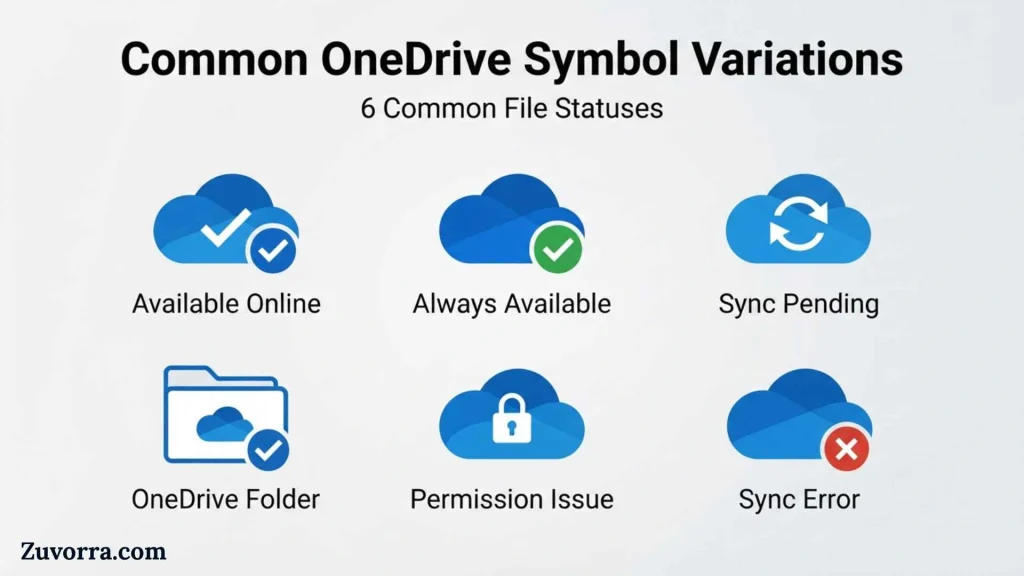
Blue Cloud Outline
Meaning: The file or folder is online-only.
It appears in your file list but does not occupy the same amount of local disk space as a downloaded file. You need internet access to open it.
Green Outlined Check Mark
Meaning: The file is locally available.
It was downloaded when you opened it or when OneDrive needed it locally. You can use it offline, but the system may convert it back to online-only to save space.
Solid Green Circle With White Check
Meaning: The file is always available on the device.
You or an administrator selected an option that keeps a downloaded copy. It remains available offline and uses disk space.
Circular Arrows
Meaning: Synchronization is in progress.
This can include uploading a changed document, downloading a cloud update, scanning for changes, or processing a queue.
Red X
Meaning: A sync error has occurred.
Click the OneDrive cloud icon and review the activity center. The problem may involve a file name, permissions, storage space, account access, a locked file, or another sync restriction.
Pause Symbol
Meaning: Syncing has been paused.
Existing files remain where they are, but new changes will not transfer until synchronization resumes.
Gray Cloud With a Line
Meaning: OneDrive is not signed in, is not running correctly, or has not completed setup.
Start OneDrive and sign in. If the account is already configured, unlinking and relinking may sometimes be necessary.
People Icon
Meaning: The file or folder has been shared.
The symbol does not tell you exactly who has access or whether they can edit. Open the sharing settings to inspect permissions.
Chain-Link Folder
Meaning: The folder is a shortcut to another shared location.
This commonly appears when someone uses Add shortcut to OneDrive for a shared folder.
Gray Circle With a Horizontal Bar
Meaning: An administrator has blocked that file type from syncing.
This is most relevant to work or school accounts. Outlook data files are a common example of content organizations may restrict.
Lock Icon
Meaning: The file is read-only or subject to library restrictions.
In a SharePoint or Teams library, the user may lack editing permission, the document may require checkout, or the library may require metadata before changes can sync.
Quick Decision Guide: What Should You Do?
Do you see a blue cloud?
↓
You need the file offline.
↓
Right-click it and choose Always keep on this device.
Do you see a solid green circle?
↓
You need more disk space.
↓
Right-click the file and choose Free up space.
Do you see circular arrows?
↓
Wait briefly and check the OneDrive activity center.
↓
If the icon remains for a long time, inspect large files, open files, network access, and the sync queue.
Do you see a red X?
↓
Open OneDrive from the taskbar or menu bar.
↓
Read the specific error before renaming, moving, or deleting anything.
Do you see a people icon?
↓
Open Manage access or Sharing.
↓
Confirm who can view or edit the item.
Common Misconceptions
A Blue Cloud Does Not Mean the File Is Missing
The file still exists in OneDrive. The cloud means its contents are stored online and have not been fully downloaded to the current device.
A Green Check Does Not Always Mean “Permanently Downloaded”
The outlined green check means the file is available locally now. It can later return to online-only status. Only the solid green circle indicates that the file is marked to remain on the device.
Free Up Space Does Not Delete the Cloud File
The Free up space command removes the local downloaded data and returns the file to online-only status. The file remains visible and stored in OneDrive.
Deleting an Online-Only File Still Deletes It
An online-only file is not merely a harmless shortcut. Deleting it from the OneDrive folder normally deletes the cloud item and synchronizes that deletion across connected devices. On macOS, Microsoft confirms that deleting an online-only file removes it from OneDrive across devices, subject to recovery through the recycle bin.
Circular Arrows Do Not Always Mean a Problem
They often appear during normal uploads and downloads. They become concerning when they remain unchanged for an unusually long period.
The People Icon Does Not Guarantee Public Access
It only means the item has been shared. Access could be limited to one person, a group, an organization, or anyone with a particular link.
A Red X Does Not Automatically Mean Data Loss
It means OneDrive could not sync something. The local or cloud copy may still exist. Review the error before changing the file.
Interesting Facts About OneDrive Symbols

- The blue cloud represents availability, not file type.
A document, photograph, spreadsheet, video, or folder can all display the same cloud icon when stored online-only. - Two check marks can describe different storage policies.
The outlined check reflects a current local copy, while the solid check reflects an instruction to preserve that copy offline. - A file can change symbols without being edited.
Opening an online-only file downloads it, changing its icon from a cloud to a green check. - Storage Sense can affect availability icons.
On Windows, locally available files may return to online-only status according to storage-management settings. - Folder settings can influence future files.
When a folder is marked to remain on the device, new items created inside it may also download automatically. - Shared status and storage status can appear together.
A file may be both shared and online-only, so interfaces may combine or prioritize icon overlays. - OneDrive icons are not ordinary text symbols.
You cannot reliably copy and paste them like Unicode characters because they are interface graphics generated by the application. - Work accounts can display extra restrictions.
Administrators can exclude selected file types from synchronization, causing a special Status-column icon to appear. - Files On-Demand settings are device-specific.
A file can be permanently downloaded on one computer and online-only on another. - Finder cannot always search inside online-only files.
On Mac, Finder may locate an online-only file by name but may not search its contents because the full data is not stored locally. - A shortcut folder is not the same as a copied folder.
The chain-link icon shows a connection to shared content rather than a separate duplicate. - No OneDrive symbol is a complete backup verdict.
A green check describes synchronization and local availability. It does not prove that every possible version or recovery need is covered.
Related Symbols
| Related Symbol | Meaning | How It Differs |
| Download arrow | Download available or in progress | Focuses on transfer to the device rather than full sync status |
| Upload arrow | Upload in progress | Describes one transfer direction |
| Refresh arrows | Reload or update | May refresh content without synchronizing files |
| Padlock | Restricted or read-only | Relates to permissions rather than storage availability |
| Chain link | Connected location or shortcut | Shows a relationship, not a duplicate file |
| People silhouettes | Shared access | Describes collaboration rather than file location |
| Warning triangle | Attention required | Signals a warning rather than a confirmed sync failure |
| Red X | Failure or unavailable action | Indicates an error requiring investigation |
| Check mark | Completed or ready | In OneDrive, its circle style changes the exact storage meaning |
| Cloud with arrow | Cloud download or upload | Common on macOS and mobile interfaces |
Frequently Asked Questions
What does the blue cloud mean in OneDrive?
A blue cloud means the file or folder is online-only. You can see its name and basic details, but the full contents are not currently stored on your device. It uses minimal local space and normally requires an internet connection when you open it.
What is the difference between the two green OneDrive check marks?
An outlined green circle means the file is locally available and can be opened offline. A solid green circle with a white check means it is marked Always keep on this device. Both use storage, but the solid icon represents a deliberate instruction to preserve the offline copy.
What do the blue circular arrows mean?
Blue circular arrows indicate that OneDrive is syncing or processing changes. It may be uploading local edits, downloading cloud updates, or checking files. Brief appearances are normal. When the arrows remain for a long time, open the OneDrive activity center and inspect the pending item.
Why does my OneDrive file have a red X?
A red X means the file or folder could not sync. Possible causes include account problems, unsupported names, insufficient storage, restricted file types, permission issues, locked files, or connectivity failures. Select the OneDrive cloud icon to see the exact error before changing the file.
What does the people symbol mean beside a file?
The people symbol means the file or folder has been shared with someone else. It does not reveal the permission level by itself. Open Manage access or the sharing panel to see who has access, whether they can edit, and whether a link remains active.
Why did my green check change to a blue cloud?
The file became online-only. This may happen after you select Free up space, after Storage Sense applies a storage rule, or after another device-specific setting changes. The cloud file remains in OneDrive but must be downloaded again before offline use.
Can I remove a OneDrive file from my computer without deleting it online?
Yes. Right-click the file or folder and select Free up space. This removes the downloaded local contents and changes the item to online-only. Do not press Delete, because deleting an item from the synchronized OneDrive folder normally also deletes its cloud copy.
What does the gray line through the OneDrive cloud mean?
A faded or gray OneDrive cloud with a line through it usually means you are signed out, the desktop app is not running correctly, or setup has not finished. Start OneDrive, sign in, and review the account settings. The symbol concerns the account connection, not one specific file.
Why is there a lock beside my synced file?
A lock usually means the file is read-only or controlled by permissions in a SharePoint or Teams library. You may lack editing rights, the library may require checkout, or required metadata may be incomplete. Contact the owner or organization administrator if editing should be allowed.
Why are my OneDrive symbols missing?
The OneDrive app may not be running, the Status column may be hidden, or the taskbar icon may be inside the hidden notification area. Start OneDrive, expand hidden taskbar icons, and check File Explorer’s column settings. Microsoft also notes that missing taskbar icons can occur when OneDrive is not running.
Key Takeaways
- A blue cloud means a file is stored online-only.
- An outlined green check means the file is downloaded and currently available offline.
- A solid green circle with a white check means the file is set to remain on the device.
- Circular arrows indicate uploading, downloading, or processing changes.
- A red X signals a synchronization error, not necessarily lost data.
- A people icon identifies shared content.
- A chain-link folder is a shortcut to a shared folder.
- Pause, warning, blocked, and signed-out symbols apply to the OneDrive account or sync app.
- Selecting Free up space does not delete the cloud copy.
- Pressing Delete inside a synced OneDrive folder can delete the item from the cloud and other devices.
- Exact icon designs may vary between Windows, macOS, personal accounts, and work or school accounts.
Conclusion
OneDrive symbols provide a compact picture of where your files are stored, whether they work offline, and whether synchronization is proceeding normally. The blue cloud and green check marks describe storage availability, while arrows, warning signs, sharing marks, locks, and red error icons communicate activity, permissions, or problems.
Learning these OneDrive symbols makes cloud storage safer and easier to manage. Before deleting, moving, or troubleshooting a file, check its icon, open the OneDrive activity center, and confirm whether you are dealing with an online-only file, a local copy, a shared item, or a genuine sync error.
References
- Microsoft Support, What do the OneDrive icons mean?
- Microsoft Support, Save disk space with OneDrive Files On-Demand for Windows
- Microsoft Support, Save disk space with OneDrive Files On-Demand for Mac
- Microsoft Support, Fix OneDrive sync problems
- Microsoft Learn, Use OneDrive policies to control sync settings

I’m Rupert Ashbourne, a British author interested in how symbols have shaped human communication throughout history. I examine signs, emblems, markings, and visual representations, explaining their meanings and cultural significance. My aim is to make symbolism approachable while helping readers understand how simple shapes and images can carry surprisingly powerful messages.
Books:
- The Meaning of Symbols
- A History of Signs and Emblems